
See your Instagram grid before it goes live
The grid planner shows your Instagram profile as it will look: upcoming posts on top, each marked with when it goes out, and your published posts underneath. Drag one upcoming post onto another and they swap places.
Free plan · No card needed · Cancel any time · Prices in GBP
Your feed, before it’s live
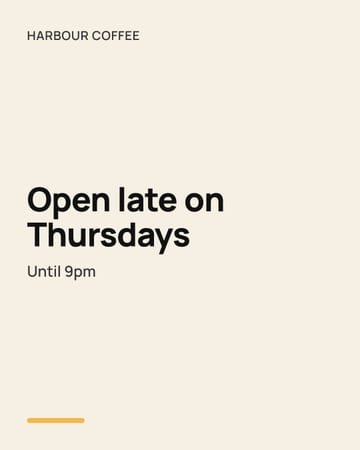
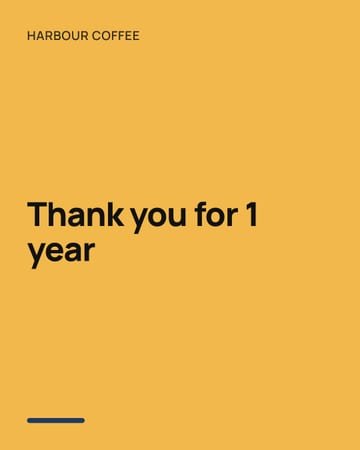
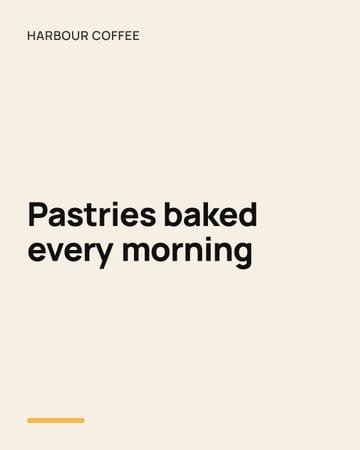
The top row is what’s scheduled, newest first, with when each goes out. Below it is what’s already on the profile. Drag a scheduled post onto another to swap them; the times stay where they are.
A sample feed for a made-up café.
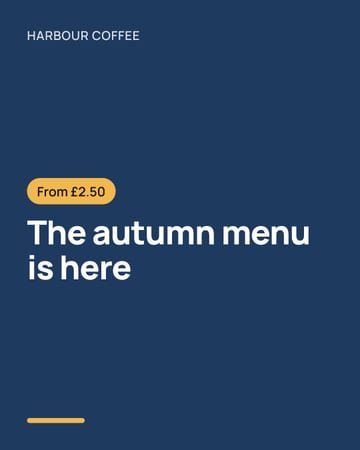 Fri 09:00
 Wed 12:30
 Mon 09:00



What the grid planner does
Your profile, ahead of time
Upcoming posts sit above the posts already on your profile, in Instagram’s tall tiles, newest first.
Drag to rearrange
Drop one upcoming post onto another and they trade places. On a phone or with a keyboard, use the arrows instead.
Your posting times stay put
A swap changes which post goes out in each slot, not the slots themselves, so rearranging never books a new time.
Other networks keep their timing
When a post also goes to Facebook or LinkedIn, those versions keep the same gap from the Instagram post when it moves.
One grid per account
Switch between the Instagram accounts in your workspace and plan each grid on its own.
The same posts as the calendar
The grid shows how the feed will look; the calendar shows when. Both work from the same scheduled posts.
How to plan your Instagram grid
Schedule a few posts
Schedule your next Instagram posts as usual, from the composer, bulk upload or your AI assistant.
Open the grid planner
Choose Grid planner in the sidebar and pick the Instagram account. Upcoming posts appear above your latest published ones.
Swap what doesn’t sit right
Drag an upcoming post onto another to trade their places, or use the arrows on a phone or keyboard.
Check the result
The tiles show the new order straight away, and each post keeps to the times you planned.
Three ways to use it
Break up a run of lookalikes
Three product shots in a row? Swap one with the quote card scheduled for Friday.
Keep a pattern going
Photo, quote, photo: move posts until the rows follow the pattern your feed is known for.
Lead with the launch
Move the launch announcement into the first slot of launch week without rebooking any times.
Good to know
- The grid shows up to 60 upcoming posts and your 24 latest published posts.
- Only upcoming posts move. Published posts are shown as they are on Instagram.
- Instagram shows profile grids in tall 3:4 tiles, so the planner does too.
Questions
More features
- Social media schedulerWrite once, tailor it per network, schedule it
- Content calendarMonth, week and day views with drag-and-drop
- Bulk uploadUp to 15 posts at once, with AI captions
- LinkedIn carouselsSwipeable carousels and PDF document posts
- Recurring & evergreen postsRe-share approved posts on a set rhythm
- AI writing assistantCaptions, hooks and rewrites in your brand voice
- Branded imagesPost images in your logo, colours and font
- AI assistants (MCP)Plan and schedule posts from Claude or ChatGPT
- Media libraryPhotos, videos and GIFs for the whole team
- Campaigns & templatesCampaigns, labels, hashtag groups and templates
- Social inboxReply to comments from four networks in one place
- AnalyticsOnly the numbers the networks report
- ReportsShareable, password-protected client reports
- Link trackingShort links, UTM tags and real click counts
- Link in bioOne page of links, with every click counted
Plan a feed that looks planned.
Start free and connect your Instagram account.